
Download TomTom MyDrive Connect – free, secure GPS management tool for Mac, Windows & mobile
Overview
TomTom MyDrive Connect is the official companion application that lets you manage every aspect of your TomTom GPS device from the comfort of your computer. Whether you own a classic TomTom Roadster, a high‑end TomTom GO, or a newer portable model, MyDrive Connect offers a single, secure hub for updating maps, downloading speed‑camera alerts, syncing points of interest, and even backing up custom routes. The software is free to download, works on macOS, Windows, Android, and iOS, and requires only a modest 8 GB of free disk space.
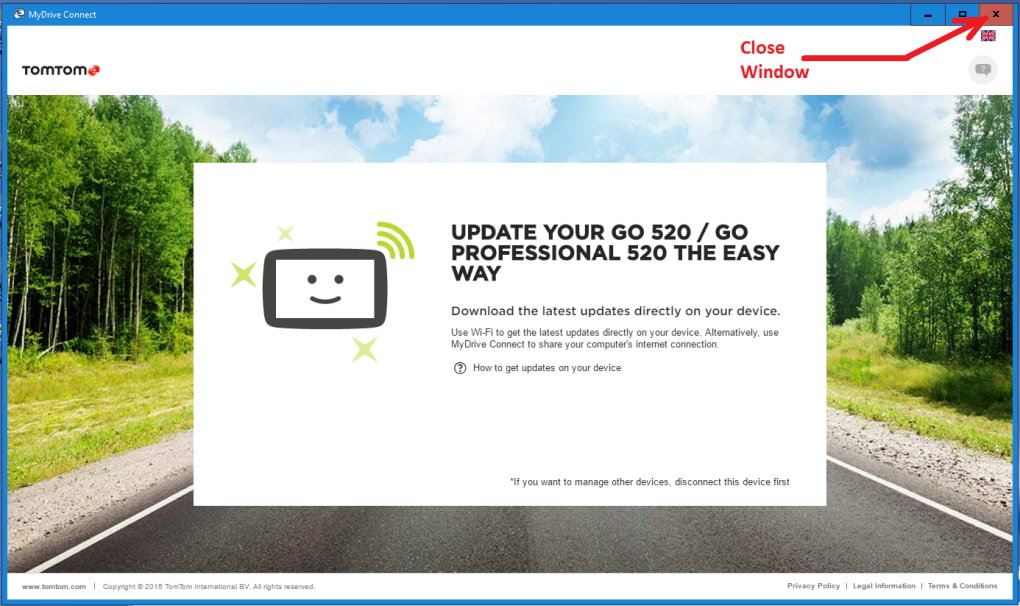
After installation, the app automatically detects any TomTom device that is connected via USB or Bluetooth, prompting you to log in with your MyDrive account or create one on the spot. Once you’re signed in, the interface guides you through the latest map updates, additional content packs, and community‑driven features such as traffic‑aware routing. Because the tool integrates directly with TomTom’s cloud services, you’ll always receive the most recent map revisions without having to search the web for third‑party files.
The application also stores caches, preference files, and support data on your machine, which is why a clean uninstall can sometimes be a little tricky—something we’ll cover later. Overall, TomTom MyDrive Connect is designed to be an intuitive, all‑in‑one solution for anyone who wants to keep their navigation system current, secure, and personalized.
Key Features of TomTom MyDrive Connect
- Map Updates & Downloads – Automatic detection of new map releases, with one‑click download and installation.
- Speed‑Camera & Traffic Alerts – Sync real‑time speed‑camera data and live traffic information directly to your device.
- Points of Interest (POI) Management – Add, edit, or delete POIs, and export them to your GPS unit.
- Route Backup & Restore – Safely back up custom routes to the cloud and restore them on any TomTom device.
- Community Integration – Access the TomTom community for shared routes, tips, and troubleshooting guides.
- Cross‑Platform Compatibility – Available for macOS, Windows, Android, and iOS, ensuring you can manage your device from virtually any computer.
- Secure Account Sync – Uses encrypted connections to keep your MyDrive credentials and device data safe.
- Low System Requirements – Runs smoothly on older hardware with a minimum of 8 GB free disk space and 2 GB RAM.
Each feature is designed with both novice and power users in mind. For example, the map‑update wizard walks you through each step, showing file sizes and estimated download times, while the advanced POI editor offers bulk‑import options for professionals who need to manage thousands of locations. The traffic‑aware routing feature pulls data from TomTom’s global traffic network, automatically rerouting you around congestion and roadworks.
Meanwhile, the backup system stores a copy of your routes on TomTom’s secure servers, letting you restore them if you ever replace or reset your device. The community tab provides a searchable library of user‑generated content, from scenic drives to hidden cafés, all vetted by the TomTom team for accuracy. All of these capabilities are bundled into a clean, modern UI that respects macOS and Windows design guidelines, making navigation management feel less like a chore and more like an extension of your everyday digital routine.
Installation, Usage & Compatibility
Step‑by‑Step Installation on macOS and Windows
1. Download the installer from the official TomTom MyDrive Connect page. The file is a small .dmg for macOS or .exe for Windows, typically under 120 MB.
2.
Run the installer. On macOS, drag the MyDrive Connect icon into your Applications folder. On Windows, follow the wizard prompts, accepting the license agreement and choosing a destination folder (the default is fine for most users).
3.
Launch the application. The first launch will request permission to access external devices; grant these permissions so the app can detect your TomTom GPS when it’s connected via USB or Bluetooth.
4. Sign in or create a MyDrive account.
If you already have a TomTom account, use those credentials; otherwise, click “Create Account” and fill in your email, password, and device details.
5. Connect your GPS. Plug the device into a USB port or pair via Bluetooth.
MyDrive Connect will automatically recognize the model and display a dashboard with update options.
Using MyDrive Connect to Update Maps and Manage Content
Once your device appears in the dashboard, you’ll see three main tabs: Maps, POI & Routes, and Settings. In the Maps tab, click “Check for Updates”. If a new map version is available, the app shows the file size and release notes.
Click “Download & Install” to start the process; the software will download the package in the background, verify its integrity, and then push it to your GPS. The POI & Routes tab lets you import CSV or GPX files, edit entries, and sync them to your device. You can also export the current route list as a backup file.
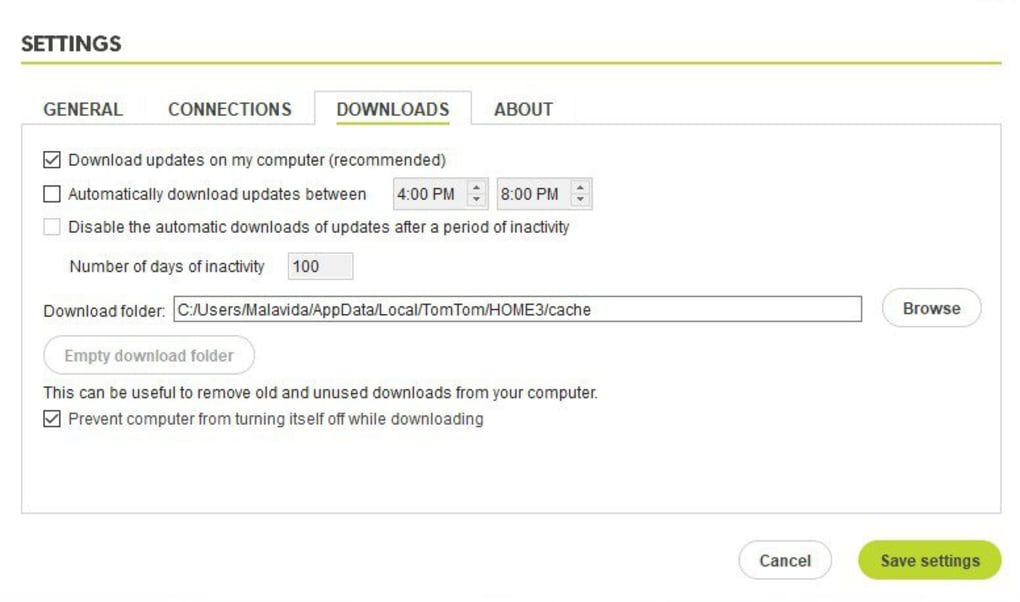
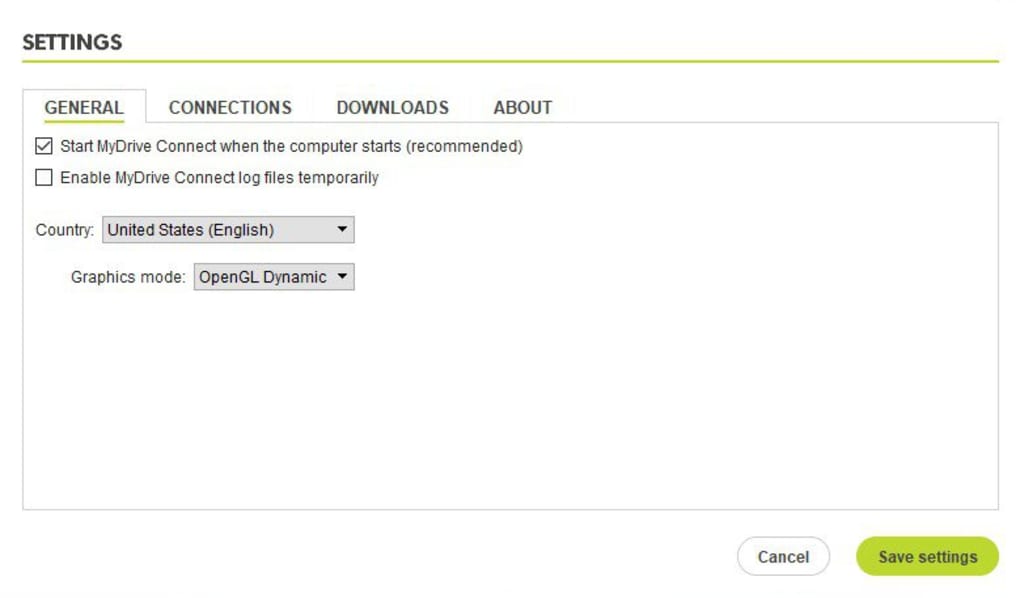
In Settings, you can enable automatic updates, manage language preferences, and configure how frequently MyDrive Connect checks for traffic alerts. All changes are saved locally and synced to TomTom’s cloud, so you can access the same configuration from any computer that runs MyDrive Connect.
Compatibility Details
TomTom MyDrive Connect supports macOS 10.13 (High Sierra) and later, Windows 7 SP1 and newer (including Windows 10 and 11). Mobile versions are available on Android 5.0+ and iOS 11+. The application works with all TomTom navigation devices released since 2014, provided they have a USB or Bluetooth interface.
Minimum hardware requirements are modest: a dual‑core processor, 2 GB RAM, and at least 8 GB of free disk space. For macOS users, the app is notarized by Apple, ensuring it runs without gatekeeper warnings. Windows users may need to allow the installer through User Account Control (UAC) the first time.
Pros, Cons, Frequently Asked Questions & Final Verdict
Pros
- Free to download and use – no hidden subscription fees.
- One‑click map updates keep navigation data current.
- Cross‑platform support for macOS, Windows, Android, and iOS.
- Secure, encrypted connection to TomTom’s cloud services.
- Comprehensive POI and route management tools.
- Low system requirements – works on older computers.
- Active community support and official documentation.
Cons
- Uninstall process leaves residual caches and preference files on macOS.
- Initial setup can be confusing for non‑technical users.
- Automatic updates sometimes require a restart of the application.
- Limited customization of the UI beyond theme selection.
- Requires an active internet connection for map downloads and traffic data.
FAQ – Your MyDrive Connect Questions Answered
How do I completely uninstall TomTom MyDrive Connect from my Mac?
First, quit the application from the Dock. Then drag the MyDrive Connect app from the Applications folder to the Trash. Next, open Finder, press Shift + Command + G and go to ~/Library/Application Support/ and delete the TomTom folder. Also remove any leftover files in ~/Library/Preferences/ (look for com.tomtom.mydriveconnect.plist) and ~/Library/Caches/. Finally, empty the Trash and restart your Mac.
Can I use MyDrive Connect without an internet connection?
You can manage existing routes and POIs offline, but map updates, traffic alerts, and cloud sync require an active internet connection.
Is there a limit to how many devices I can manage with one MyDrive account?
TomTom does not impose a strict limit; most users manage up to five devices without issue. For larger fleets, consider TomTom’s business solutions.
What should I do if MyDrive Connect fails to detect my GPS?
Ensure the USB cable is functional and the device is powered on. On macOS, check System Preferences → Security & Privacy → Privacy → Files and Folders, granting MyDrive Connect access to removable volumes. Restart both the computer and the GPS, then reconnect.
Does MyDrive Connect support third‑party map packages?
No. The application only installs official TomTom map releases to ensure compatibility and licensing compliance.
Final Verdict & Call to Action
TomTom MyDrive Connect remains one of the most reliable and feature‑rich tools for managing TomTom navigation devices. Its free pricing, straightforward map‑update workflow, and cross‑platform availability make it an essential utility for drivers who rely on up‑to‑date navigation. While the uninstall process on macOS can be a little messy, the benefits of having a centralized hub for maps, POIs, and traffic data far outweigh this minor inconvenience. If you own a TomTom GPS and want to keep your routes fresh, your maps current, and your device synced with the latest traffic alerts, there’s no better companion than MyDrive Connect. Download TomTom MyDrive Connect today, sign in with your MyDrive account, and experience hassle‑free navigation management.







